With Tap to Give, a phone or tablet running the Givana app becomes a contactless giving point. Givers tap a card, phone or watch. There's no card reader to buy.
What you need
- An Android phone or tablet that supports contactless payments (NFC)
- Stripe connected, with payout readiness at 100%
Install and sign in
- On your dashboard's Overview, choose Connect the mobile app.
- Choose Get the Android app and install it on the device.
- Open the app and choose Scan QR to sign in.
- Back on your dashboard, choose Show pairing code and point the device's camera at it.
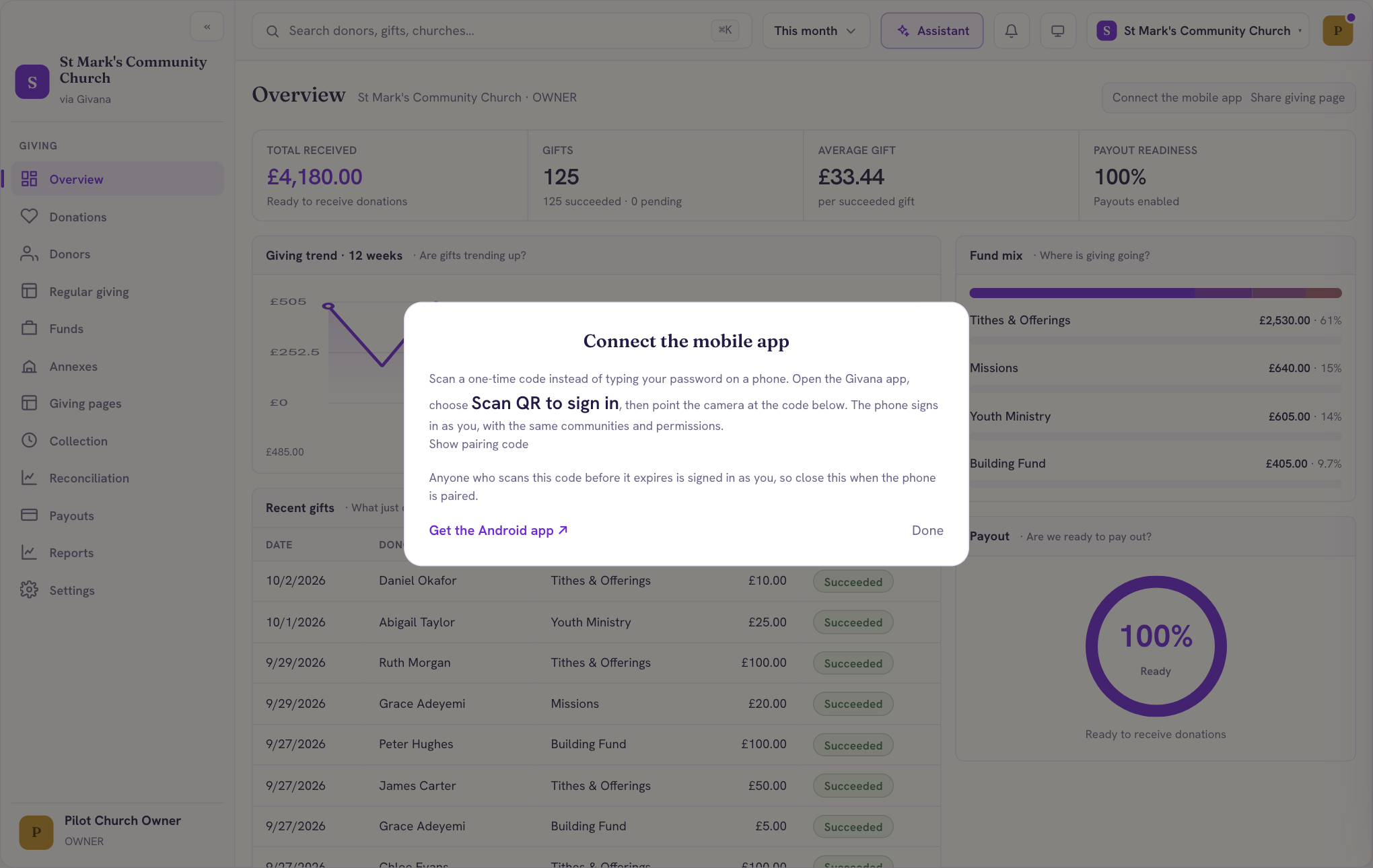
The device is now signed in as you, with the same communities and permissions. Close the window once it's paired: anyone who scans the code before it expires is signed in as you.
Taking gifts
Choose a fund if you have more than one, then hand the device to givers or put it where people give. They choose an amount and tap. After each gift the app thanks them and gets ready for the next person.
Givers who want a receipt, or want to add Gift Aid, can scan the QR code on the thank-you screen with their own phone.